
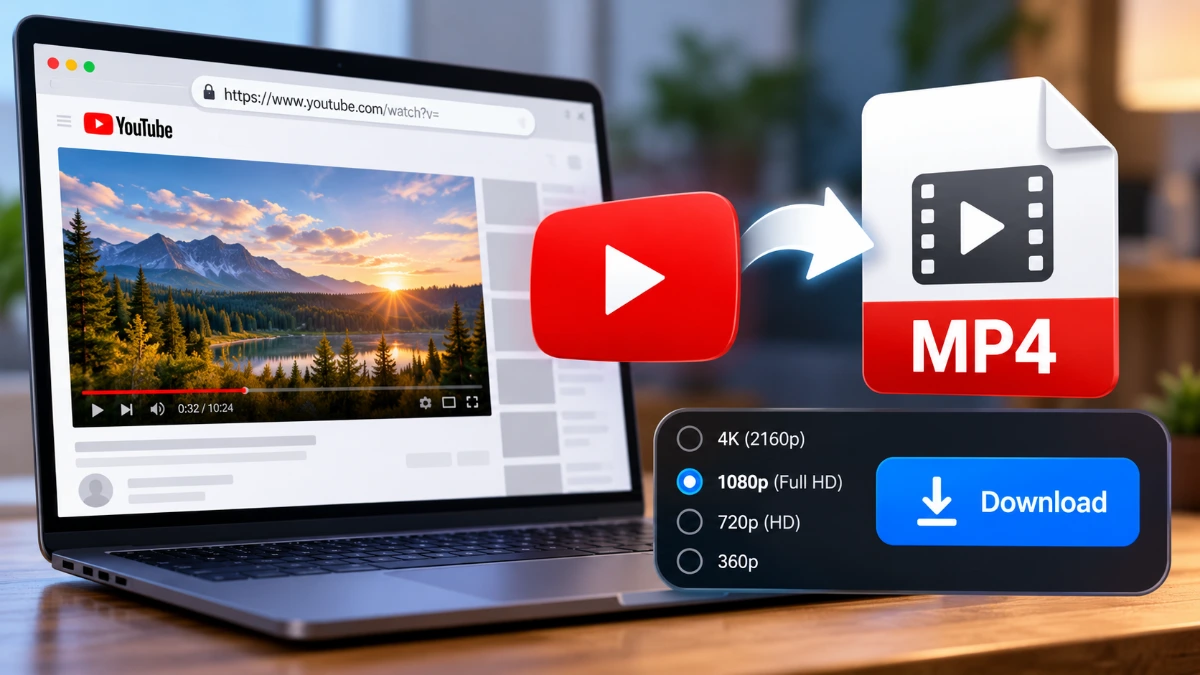
To convert YT to MP4, copy a YouTube video link, paste it into a compatible online converter, select MP4 as the output format, and download the file. This method works for videos you’re permitted to download, but not every video or converter supports it. YouTube also restricts unauthorized downloading under its terms.
If you want to save videos you’ve uploaded yourself, YouTube Studio offers an official MP4 download option. Third-party converters may provide browser-based downloads and additional resolution choices, but their features, security, and reliability vary.
How to Convert YT to MP4 Online
An online YouTube-to-MP4 converter lets you process a video link in your browser without installing video-editing software. Many services advertise free conversion, although available resolutions, download limits, and charges vary. Some also display advertisements or restrict certain features.
For videos you’re authorized to download, follow these steps:
- Copy the video URL. Open YouTube, find the video you want, select Share, and copy its link.
- Open a compatible converter. Look for a service that clearly explains its features, limitations, and privacy practices.
- Paste the URL. Enter the copied link into the converter’s input field.
- Select MP4 format. Choose MP4 and an available resolution, such as 720p or 1080p.
- Download the video. If the converter supports the video and downloading is permitted, select its download option to save the MP4 file.
The exact process depends on the converter. Some services need extra processing time, while others cannot access certain videos or offer every quality option.
Pay attention to the download button before clicking. Some websites place advertisements or unrelated software installers near the actual video download option.
How to Download YouTube Videos as MP4 Using Official Methods
YouTube provides an official way to download videos you’ve uploaded to your own channel. It’s generally the simplest choice when you need an MP4 copy of your content without using an unfamiliar third-party converter.
Download Your Videos Through YouTube Studio
On a Windows PC or Mac:
- Sign in to YouTube Studio.
- Select Content from the left menu.
- Find the video you want to download.
- Open the three-dot menu next to that video.
- Select Download to save the file.
According to YouTube’s official instructions for downloading your uploaded videos, MP4 downloads are available in 720p or 360p, depending on video size. Even if you originally uploaded a higher-resolution video, the Studio download may not match that quality.
The download option may be unavailable if your video has been removed, has a copyright or Community Guidelines strike, or uses a preapproved audio track. YouTube also limits downloads of each uploaded video to five times within 24 hours.
If you need copies of multiple uploads, Google Takeout offers another way to export your YouTube videos.
What About YouTube Premium?
YouTube Premium lets eligible subscribers download videos for offline viewing on supported phones, tablets, and computer browsers.
However, these downloads aren’t ordinary MP4 files you can transfer to another media player or share through your file manager. They’re intended for playback within YouTube.
The YouTube Premium offline viewing instructions explain how to save and access videos on supported devices.
If you need a regular MP4 file for playback outside YouTube, Premium’s offline feature isn’t the same as downloading a transferable video file.
Choosing MP4 Quality and Saving Videos on Your Device
MP4 is a widely supported video container format that works with most modern computers, smartphones, and media players. However, playback compatibility also depends on the video and audio codecs used inside the file.
When converting YouTube videos to MP4, you may see several resolution options:
- 360p: Works well for smaller screens or when you want to conserve storage space.
- 720p: Offers a reasonable balance between picture quality and file size.
- 1080p: Provides sharper Full HD video, especially noticeable on larger screens.
- 4K (2160p): Delivers greater detail when both the original video and conversion method support it.
These resolutions are among YouTube’s documented video resolution options, but that doesn’t mean every converter can download each one.
Higher resolutions generally result in larger files when other encoding settings are similar. Video length, bitrate, compression, and audio settings also affect the final size.
Your available options depend on the original video and the converter you’re using. Some high-resolution YouTube streams store video and audio separately, so compatible processing software may be needed to combine them into one MP4 file.
Downloading MP4 Files on Windows, Mac, Android, and iPhone
The basic browser-based conversion process is similar across devices. What changes is where your downloaded file goes and how you open it.
Windows and Mac: MP4 downloads usually appear in your browser’s configured Downloads folder. Once saved, you can open the file with a compatible video player.
Android: Downloaded videos generally appear in the Downloads folder or your file manager. YouTube also allows creators to save their own uploaded videos through the mobile app.
iPhone: Browser downloads typically appear in the Files app, depending on your browser settings. Compatible MP4 files can often be saved to Photos afterward. The YouTube and YouTube Studio apps also support saving your own uploads to an iPhone.
Although file locations differ, device compatibility doesn’t override YouTube’s downloading restrictions or guarantee that a converter can access a particular video.
Is It Safe and Legal to Convert YouTube Videos to MP4?
Before using a YouTube to MP4 downloader, consider two things: whether you have permission to download the video and whether the conversion service is safe to use.
YouTube’s Terms of Service restrict downloading content unless the service specifically permits it, the necessary permissions have been obtained, or applicable law allows it.
Copyright rules also vary by country. In the United States, downloading copyrighted material for personal use isn’t automatically legal simply because you don’t plan to share it.
Downloading your own uploaded videos through YouTube’s official tools is different from saving another creator’s copyrighted content without authorization.
Security matters just as much. Some third-party converter websites use misleading download buttons, intrusive advertisements, or requests to install browser extensions that aren’t necessary for the conversion.
To reduce your risk:
- Avoid websites that demand unnecessary software installations or account credentials.
- Don’t approve browser notifications or device permissions unrelated to downloading.
- Watch for advertisements disguised as download buttons.
- Never open executable files presented as MP4 videos.
- Don’t assume a converter is trustworthy simply because it advertises free or unlimited downloads.
A polished website design doesn’t guarantee that a converter is secure, reliable, or compliant with YouTube’s rules.
Why Is My YouTube to MP4 Download Not Working?
If a YouTube to MP4 download fails, the problem may be related to the video, the conversion service, your browser, or downloading restrictions.
The video URL isn’t recognized. Make sure you’ve copied the complete link. Some converters don’t support Shorts, live streams, playlists, or certain URL formats.
The video is unavailable. Private, deleted, region-restricted, or otherwise inaccessible videos may not work with a converter.
1080p or 4K isn’t available. The original video may not support your preferred resolution, or the converter might not offer the necessary streams. Choosing a higher setting cannot restore detail missing from the source.
The downloaded video has no sound. Some conversion methods save only the video stream without combining it with audio. You’ll need a compatible method that produces a file containing both tracks.
The download stops or fails. Check your internet connection, available storage, and browser settings. Temporary problems with the converter can also interrupt a download.
The MP4 file won’t play. The download may be incomplete, the file could be damaged, or your media player might not support its codec. Try a compatible player or obtain another valid copy through an authorized method.
If the same problem keeps happening, the converter may not support that video. Changing services won’t necessarily resolve access restrictions or permission requirements.
Frequently Asked Questions
Can I convert an entire YouTube playlist into one MP4 file?
A YouTube playlist contains multiple videos, so converting it isn’t the same as downloading a single video. Some third-party tools advertise playlist support, but they may save each video separately rather than combine everything into one MP4. Creating a single file requires additional processing, and you must have permission to download the included videos.
Does converting YouTube videos to MP4 reduce video quality?
It can. If a converter re-encodes the video using lower-quality settings, some detail may be lost. Quality also depends on the source resolution, bitrate, and compression method. Choosing 1080p or 4K doesn’t automatically improve a lower-resolution original.
