
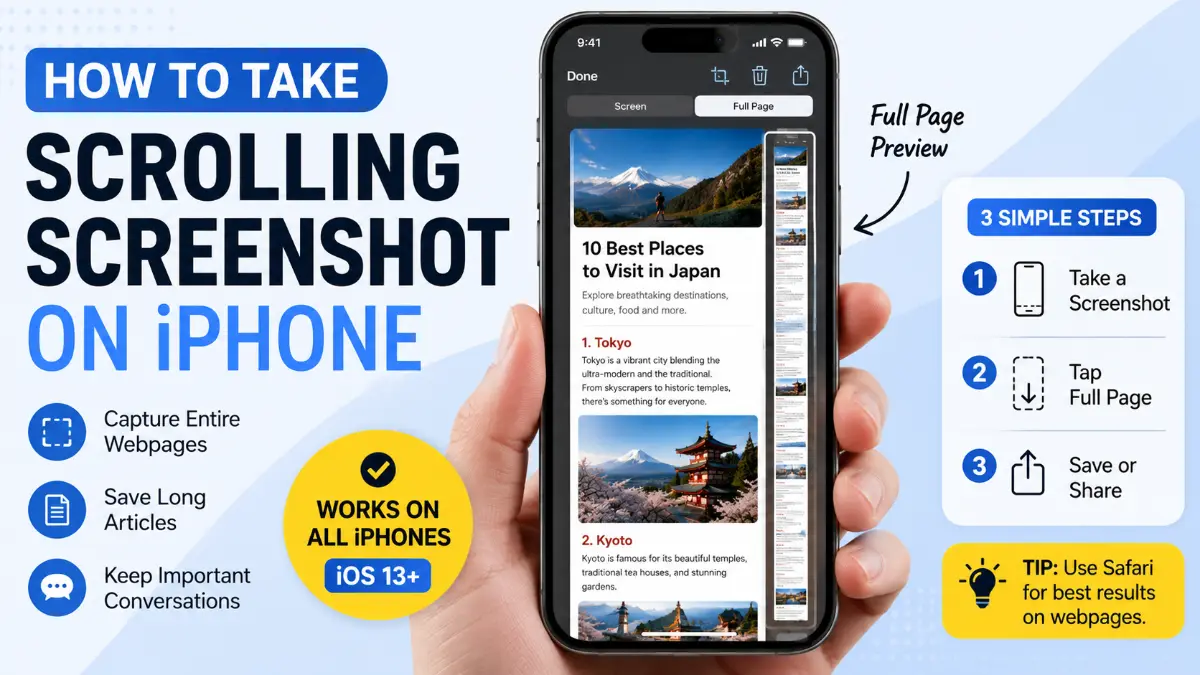
Finding out how to take scrolling screenshot iphone users can be confusing because the feature does not work exactly the same way everywhere. Some apps show Apple’s built-in Full Page option, while others only allow normal screenshots.
A scrolling screenshot allows you to capture content that extends beyond your visible screen, such as a complete webpage, long email, document, or note. Instead of taking multiple screenshots and combining them manually, the iPhone can create one extended capture when the app supports the feature. This complete guide explains how scrolling screenshots work on iPhone, supported apps, saving options, alternative methods, troubleshooting steps, and the best tools to use when Apple’s native feature is unavailable.
What Is a Scrolling Screenshot on an iPhone?
A scrolling screenshot is an extended screenshot that captures more content than what is currently visible on your display. A normal iPhone screenshot saves only the visible screen area. A scrolling screenshot goes further by capturing the complete scrollable content and combining it into one continuous file.
Common examples include:
- Full webpage captures
- Long emails
- Digital documents
- Notes
- Online instructions
- Research material
- Receipts and confirmations
Apple refers to this feature as Full Page rather than “scrolling screenshot.” The option appears after taking a normal screenshot when the app supports extended captures. The feature is useful because it saves time and keeps information organized in one place.
How Apple’s Full Page Screenshot Feature Works
Apple introduced extended screenshots to solve a simple problem: many digital pages are longer than an iPhone display.
When you capture a supported page, iPhone:
- Take a normal screenshot.
- Detects additional scrollable content.
- Creates an extended preview.
- Allows you to edit the capture.
- Saves it as a document or image depending on available options.
The feature does not automatically work in every app because applications must support the required screenshot functionality. This explains why the same iPhone can create a full-page screenshot in Safari but not in some social media or messaging apps.
how to take scrolling screenshot iphone Step by Step
The easiest way to create a scrolling screenshot is by using Apple’s built-in Full Page tool.
Follow these steps:
- Open the webpage, document, email, or note you want to capture.
- Take a regular screenshot.
- Tap the screenshot preview thumbnail.
- Open the editing screen.
- Select Full Page at the top.
- Review the extended screenshot preview.
- Crop or mark up the capture if needed.
- Tap Done.
- Choose your saving option.
If the Full Page tab does not appear, the app or content probably does not support the feature.
Also Read: How to Do Long Exposure on iPhone: How It Really Works
how to take scrolling screenshot iphone on Face ID iPhones
Modern iPhone models without a Home button use Face ID.
To take a screenshot:
- Press the Side button and Volume Up button together.
- Release both buttons quickly.
- Tap the screenshot preview.
- Select Full Page if available.
After selecting Full Page, you can scroll through the preview to check the complete capture before saving.
How to Take a Full Page Screenshot on iPhone With a Home Button
Older iPhone models with a physical Home button use a different shortcut.
Steps:
- Press the Home button and Side button together.
- Release quickly.
- Tap the screenshot preview.
- Choose Full Page.
The editing and saving process works the same after opening the screenshot editor.
Editing a Scrolling Screenshot Before Saving
Many users overlook the editing options available before saving.
The screenshot editor allows you to:
- Crop unnecessary sections
- Add annotations
- Highlight important information
- Remove extra content
Editing before saving is helpful when:
- A webpage contains unnecessary sections
- A document includes unrelated information
- You only need a specific portion of a long capture
Taking a few seconds to clean the screenshot creates a more professional final file.
How to Screenshot an Entire Webpage on iPhone
Safari is one of the best places to use the Full Page screenshot feature.
To capture an entire webpage:
- Open Safari.
- Visit the webpage.
- Take a screenshot.
- Tap the preview thumbnail.
- Select Full Page.
- Review the captured webpage.
- Save the file.
This is useful for saving:
- Online articles
- Tutorials
- Product pages
- Travel information
- Educational resources
A full webpage screenshot keeps all information together instead of separating it into multiple images.
Which Apps Support Full Page Screenshots on iPhone?
Full Page screenshot support depends on the individual app.
Some apps commonly support the feature:
| App Category | Examples | Support |
| Apple apps | Safari, Notes, Mail, Files, Pages | Usually supported |
| Browsers | Safari, Chrome, Firefox | Supported when compatible |
| Documents | Notes and productivity apps | Often supported |
| Messaging apps | Messages, some chat apps | Usually unavailable |
| Social platforms | Instagram, X, Reddit | Usually unavailable |
| Banking apps | Financial apps | Often restricted |
The important thing to remember is that this feature is controlled by app support, not only by your iPhone model.
Save Scrolling Screenshot as PDF on iPhone
One of the biggest advantages of Apple’s Full Page screenshot feature is the ability to save long captures as PDF documents.
A PDF format is useful when you need to:
- Store important information
- Print a webpage
- Share a document professionally
- Archive research material
- Keep records for later
To save a scrolling screenshot as PDF:
- Create a Full Page screenshot.
- Tap Done.
- Select Save PDF to Files.
- Choose your preferred folder.
- Tap Save.
The saved file can then be opened from the Files app or shared through email, messaging apps, or cloud storage. For documents and webpages, PDF is often the better choice because it preserves the complete content in an organized format.
Read More: Long Exposure iPhone Photography: Waterfalls, Light Trails, and Stars
Can You Save a Scrolling Screenshot as an Image?
Many users want a long image instead of a PDF. The available options depend on your iOS version and the type of content being captured.
Saving as an image can be useful for:
- Sharing on social media
- Sending a visual reference
- Creating guides
- Posting screenshots online
However, PDFs remain the traditional format for Apple’s Full Page screenshots because they handle very long content more efficiently. If you specifically need a single long image, third-party scrolling screenshot apps may provide more flexibility.
When the Full Page Screenshot Feature Does Not Work
Not every situation supports Apple’s built-in scrolling screenshot tool.
Common examples include:
- Instagram posts
- X/Twitter feeds
- Some messaging apps
- Certain banking applications
- Protected content
When the Full Page option does not appear, it usually means the app has not enabled support for extended screenshots. Changing settings or restarting your iPhone will not add support to an unsupported app.
Use Screen Recording as an Alternative Method
Screen recording is the easiest free workaround when Full Page screenshots are unavailable. This method captures whatever appears on your screen.
Steps:
- Open Control Center.
- Tap the Screen Recording button.
- Begin recording.
- Slowly scroll through the content.
- Stop recording when finished.
- Edit the video if necessary.
Screen recording is useful for:
- Chat conversations
- Social media pages
- App screens
- Long lists
The downside is that it requires more editing compared with a native scrolling screenshot.
Use Third-Party Scrolling Screenshot Apps
If you regularly capture content from unsupported apps, dedicated screenshot tools can save time. These apps typically work by combining multiple screen captures into one long image.
They are useful for:
- Customer support documentation
- Social media content creation
- Research work
- App tutorials
A third-party app is usually unnecessary for Safari or Notes because Apple’s built-in feature already handles those situations. Before installing any screenshot application, review its permissions and privacy settings because screenshots may contain personal information.
Native Screenshot vs Other Methods: Which One Should You Choose?
Different situations require different solutions.
| Situation | Recommended Method | Why |
| Safari webpage | Full Page screenshot | Fast and built into iPhone |
| Long email or note | Full Page screenshot | Creates a complete capture |
| Unsupported social media app | Screen recording | Works without app support |
| Frequent long image captures | Third-party apps | Automates stitching |
| Professional documents | PDF export | Easy storage and sharing |
Choosing the right method prevents unnecessary effort and gives better results.
Common Problems and Fixes
The Full Page Option Is Missing
If you cannot find the Full Page button:
Check:
- Whether the page contains more content below the screen
- Whether the app supports the feature
- Whether your iPhone software is updated
A short page will not show the option because there is nothing additional to capture.
The Screenshot Saves as PDF Instead of Photo
This is normal for many Full Page captures. Apple’s extended screenshot system has traditionally focused on PDF documents because they work better for long pages. If you need a long image file, consider another capture method.
The Screenshot Is Missing Sections
Try:
- Waiting for the webpage to fully load
- Refreshing the page
- Scrolling through the page once before capturing
- Removing pop-ups or overlays
Dynamic websites may change while loading, which can affect the final result.
The Screen Recording Is Difficult to Edit
For cleaner results:
- Start recording before scrolling
- Move slowly
- Avoid jumping between sections
- Trim unwanted parts afterward
Slow movement creates a smoother final recording.
Tips for Better Scrolling Screenshots on iPhone
A few simple habits can improve your captures.
Prepare the Page First
Before taking a screenshot:
- Close unnecessary menus
- Wait for images to load
- Remove pop-ups
- Start from the correct position
This creates a cleaner final result.
Review Before Saving
Always check the preview before saving.
Look for:
- Missing sections
- Incorrect starting points
- Extra content
- Cut-off information
A quick review can prevent repeating the entire process.
Use the Correct Format
Choose PDF when you need:
- Documentation
- Printing
- Business records
- Long-term storage
Choose an image-based solution when you need:
- Quick sharing
- Visual posts
- Simple references
Frequently Asked Questions
How to take scrolling screenshot iphone ?
To take a scrolling screenshot on an iPhone, capture a normal screenshot, open the preview, select Full Page, review the extended capture, and save it. The option appears only in supported apps.
Why won’t my iPhone take a full-page screenshot?
Your iPhone may not create a full-page screenshot because the app does not support the feature, the page is not long enough, or the content is restricted.
How do I take a full page screenshot on iPhone Safari?
Open Safari, visit the webpage, take a screenshot, tap the preview, select Full Page, and save the complete capture.
Can I take a scrolling screenshot in Instagram or Messages?
Usually not with Apple’s built-in tool. These apps generally do not support Full Page screenshots, so screen recording or another tool may be needed.
Can I save a scrolling screenshot as PDF on iPhone?
Yes. After creating a Full Page screenshot, choose Save PDF to Files to store the entire capture as a PDF document.
Do all iPhones support scrolling screenshots?
Support depends on the iOS version and the app being used. The feature is not available in every application.
Why is the Full Page button missing after taking a screenshot?
The button may be missing because the app does not support extended screenshots or because the content fits completely on one screen.
Is Safari the best app for scrolling screenshots?
Safari is one of the easiest apps because it commonly supports Full Page screenshots and works directly with Apple’s built-in tools.
Are scrolling screenshot apps necessary on iPhone?
No. They are mainly useful when you need captures from apps that do not support Apple’s native Full Page feature.
What is the easiest way to capture an entire webpage on an iPhone?
Using Safari’s Full Page screenshot option is usually the simplest method because it requires no extra apps and keeps the entire webpage together.
